
Use the Billing Portal in your One-Click AI account to view and change payment methods, see your billing history, and view or change your OC subscription.
Billing and Usage
The Billing section of One-Click AI contains a link to your Billing Portal as well as account usage details.
To view invoices, change payment method, change OC plan, or cancel your subscription, click Open Billing Portal.
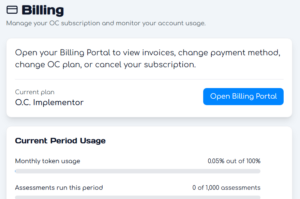
Billing Portal
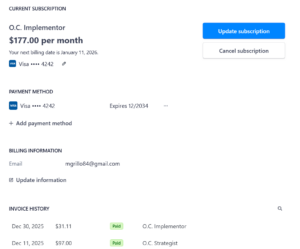
Inside the Billing Portal, you can perform several actions related to your account, such as:
Change Your Subscription Level
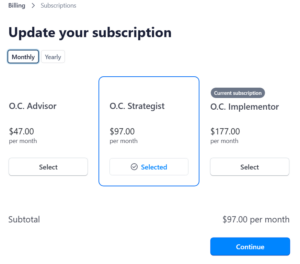
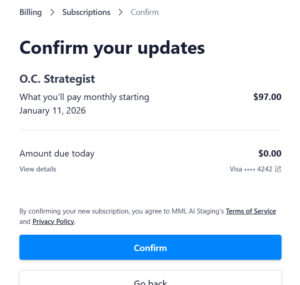
Higher subscription levels give you access to more features in One-Click AI. To upgrade or downgrade your subscription, click Update subscription; choose your new plan on the next screen; then click Confirm on the next screen.
When you change your subscription level, you will receive a credit for the unused portion of the current billing period on your old plan and be charged for the remaining time in the period at your new plan’s rate.
Add or Change Payment Method
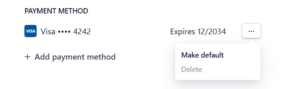
Your payment method on file will be used on your next billing date. Click the three dots next to an existing payment method to make it your default or delete; and click Add payment method to put a new method on your account.
View Billing History and Invoices
Scroll to the Invoice History section to see previous invoices, and click on an invoice to see details and download options.