In addition to our prewritten questions and criteria for each level of our AI Readiness Assessments, One-Click AI gives you the ability to create your own sets of questions and criteria to fully customize the assessment process.
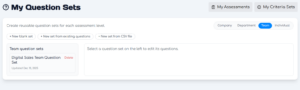
On the Assessments screen, click My Question Sets or My Assessment Sets on the top-right of the window to get started. The process for editing both are the same.
After choosing one of those two options, choose the level you want to create your custom set for and choose one of three options: + New blank set, + New set from existing (which clones our default questions/criteria), or + New set from CSV file (import your questions/criteria from a CSV file).
Importing Sets Using CSV Files
When importing a Question Set from a CSV file, make sure your file uses the following column headers:
- question (the text of your question)
- category (to organize your questions)
- weight (a number from 1 to 5 to assign priority during scoring)
And when importing a Criteria Set from a CSV file, make sure your file uses the following column headers:
- title (a few words describing the criteria)
- category (to organize your criteria)
- description (a sentence that will appear in completed assessments explaining the importance of the criteria)
- weight (a number from 1 to 5 to assign priority during scoring)
Editing Sets and Items
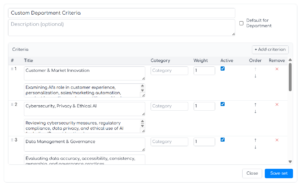
After you click on a Question or Criteria set, the set editor will appear. Here, you can add or remove items, change their order, edit their text, change their weight, and make active or inactive.
You can also check the Default box to set your default Question and Criteria sets for each Assessment level.