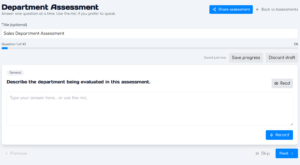
Users can complete an Assessment by typing their answers or using their microphones to speak their answers to OC.
Change the title of the Assessment on the top of the console.
Your progress will save automatically while the Assessment Console is open. You can also click Save progress to manually save your answers or Discard draft to delete the current Assessment.
Click Read next to a question to hear it spoken to you.
Type your answers into the text boxes under each question. You can also click Record to speak your answers into the console.
Navigate through the Assessment with the Previous, Skip, or Next options on the bottom of the console.
After you answer the final question, click Finish & Save to run the Assessment. The app will evaluate your answers alongside the set criteria and generate results and scores; you can navigate to other sections of the app and view the results when they are ready.